allowed you to edit Icons and Cursors, Compress Files, Create and modify Graphics & Images, Automate and Secure Your System, Customize Your Desktop, and more…
see more about CursorArts programs below
 ImageForge PRO ImageForge PRO
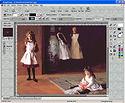
A complete digital art studio for less than $30. Contains everything you need to create quality artwork: painting, photo retouching, web site art, animations, slide shows, screensavers, merged images, library albums of your pictures, and more…
Weitere Informationen: Deutsche Version
|
 ImageForge GOLD (Vista and Windows 7 Compatible) ImageForge GOLD (Vista and Windows 7 Compatible)
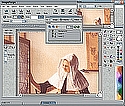
Whether you simply need to change image formats, create an animation, or produce your own illustrations, ImageForge GOLD gives you the tools you need at a price which is a mere fraction of that charged for similar programs. Includes support for: mulitple image layers; floating tool palette and preview window; new selection tools; new shadow options; new gradients and transparency controls; and much more… all for a under $40.
Weitere Informationen: Deutsche Version
|
 IconForge (Vista and Windows 7 Compatible) IconForge (Vista and Windows 7 Compatible)
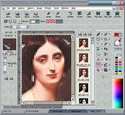
Create icons and cursors for your desktop and other projects, add bookmark and favorites icons for your web pages, stitch together panels of icons, add icons to scripts and documents, and more… This graphics suite contains everything you need for creating, extracting, and modifying icons, mouse pointers/cursors, animated icons, and other images. Now includes support for Windows Vista 256×256 alpha icons
Weitere Informationen: Deutsche Version
|
 SecurDesk! SecurDesk!
A secure Explorer shell replacement. Control access to important materials, hide confusing and irrelevant items from selected users, simplify training tasks, etc. Also available in the LV version, which gives you the desktop without the extra security features.
Weitere Informationen: Deutsche Version
|
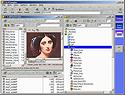 FileWrangler FileWrangler
Comprehensive file management system. Includes: the ability to compress or extract ZIP and CAB files, integrated text and html editors, backup, file security, viewer, paint program, patch maker, file splitter, rename or redate files, copy to/from Internet, and much more…
Weitere Informationen: Deutsche Version
|