Features
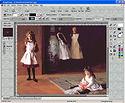
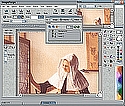
IconForge contains a full set of painting tools, including:
- Tools for creating your icons, cursors and animations;
- Transparency Options for various effects;
- Libraries for collecting and distributing your icons and cursors;
- Icon Wrapper for assigning icons to documents and scripts which don't have icons;
- File Formats lists image, program and other file formats which you may import/export;
- Other Features...
Tools
- Brushes - click twice on the tool to choose natural media such as chalk, watercolor, oil (or create your own custom brushes with the Brush options). Options to control the transparency of the brush, allow each stroke to fade out, etc. You can also paint using material from another icon or image, or paint with Clip-art Brushes;
- Color Extractor Tools - extract painting color, set transparent color or set Cursor Hot Spot;
- Rectangles Tools - Normal, 3D, Fuzzy, Rounded, Bordered or Gradient options;
- Ellipse/Polygon Tools - Circle, Fuzzy Circle, Polygon, Bordered Polygon, Star;
- Line Tools - Straight Line, Curve, Arrow and Gradient;
- Fill Tools - Flood, Fill to Border or Color Replacement (all with color similarity, intensity and other options);
- Scissors/Selection Tools - (Normal rectangle, Circle/elliptical, Select freeform Region and Select by Filling modes;
- Clone Tool - Paint using material from another part of the image, or from any other open image;
- 3D Tools - Add 3D shapes and text;
- Text - use any installed Windows font;
- Erasers - Normal and Color-to-Color Replacement, and Color Channel Eraser;
- Retouch Tools - Scatter, Splatter (random spray), Darken, Lighten, Smudge and Sharpen;
- Paint with Filter Tools - Ripple, Add Noise, Oil Paint, Gray, Tint and Emboss options;
- Clip Art Library - Paint with a single or series of images;
- Distortion Brushes - Putty, FishEye lens, Deform, Swirl and Bulge options;
- Multi-level Zoom - enlarge the image to edit fine details. A quick jump icon toggles between actual size view and last magnification level. The Preview window can display an enlargement of the area under the cursor (for precise pixel placement when zoomed out), or show the actual size view;
- Preview Testing - Icon on the Magnify panel allows you to quickly view your icon or cursor against a variety of backgrounds. You can also test cursor hotspots with common controls.
- Effects Filters shadow, blur, texture, bump, whirlpool, create tile pattern, color reduction, and many more. Supports many Photoshop-style plugins, as well as user-defined filters;
- Auto-generate Animation Effects - Rotate, Scroll Text, Swirl, Fade, Dissolve, Wipes, etc.
- Object Fill/Paint Style Options - add Pattern, Texture, Gradient. ;
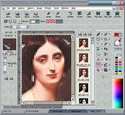
- Palettes - choose from rainbow, history, default 16-color or custom-color palette with color mixing area;
- Undo/Redo - with history tracking to jump back to a previous point during editing (you can control the number of levels in the Set Preferences);
- and more.
Transparency
You can paint with transparent «color» to allow the desktop to show through portions of your icons and cursors. You may also designate areas that will display an inverse video effect -- which reverses the background colors over which the icon or cursor is displayed.
For XP systems, you can edit the Alpha-channel in 3 different modes to produce semi-transparent areas. You have the choice of normal (Color Channel) painting mode, editing a greyscale mask (Alpha Channel), or painting directly with semi-transparent colors (Composite mode). You can switch between painting modes with a click on the tabs below the editing window.
Buttons to save and restore the transparency Mask make it easy to restore transparent areas after heavy editing. There is also an Effect filter for generating a semi-transparent shadow under the icon.
Library Functions
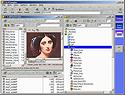
Built-in Library functions allow you to assemble and edit collections of icons in Icon and Cursor Library formats (.ICL/.CUL). Library files make it easy to organize your icon images, save disk space, include with programming projects, etc. There is even a Distribute tool which allows you to create your own EXE programs for your icon and cursor libraries (complete with Setup and Viewer utilities), which you can use to give or sell your collections to others.
Icon Wrapper
And what about those documents, scripts, programs, and other files which don't have the resources to include an icon? With IconForge's Icon Wrapper utility, you can wrap the document into a self-extracting, self-executing program to which you can assign an icon of your choice.
Supported File Formats Include:
|
|
|
|
|
IconForge lets you produce and edit icons, multi-resolution icons (icons which contain images in multiple sizes/colors), cursors, and animated icons/cursors. You can choose between a variety of standard or custom sizes. You can import images from existing program, system, image or animation files, with options to clip from, crop and/or re-size the imported image.
You can also export your work to various other formats. The 32-bit version can export your animated icon/cursor to AVI video, FLC, FLI or GIF animation formats, so you can use the same image in your programs as on your web page or other presentation. The 32-bit version also makes it possible to directly change the icons inside program and system files (EXE, DLL, etc.).
The ActivIcons utility is linked to IconForge for accessing Windows' default icon and cursor settings.
IconForge itself is highly customizable. You can select alternative skins, choose your own cursors (even alpha-channel cursors in XP), and control how objects are drawn. And since IconForge can display several editing sessions at the same time, it's a snap to cut and paste material between cursors, icons and animations. But nothing tops trying IconForge for yourself, so on to the download links and pictures ...